Getting started
Install using Mu
Requirements
A Windows or macOS computer with the Mu Editor installed.
Select the MicroPython mode
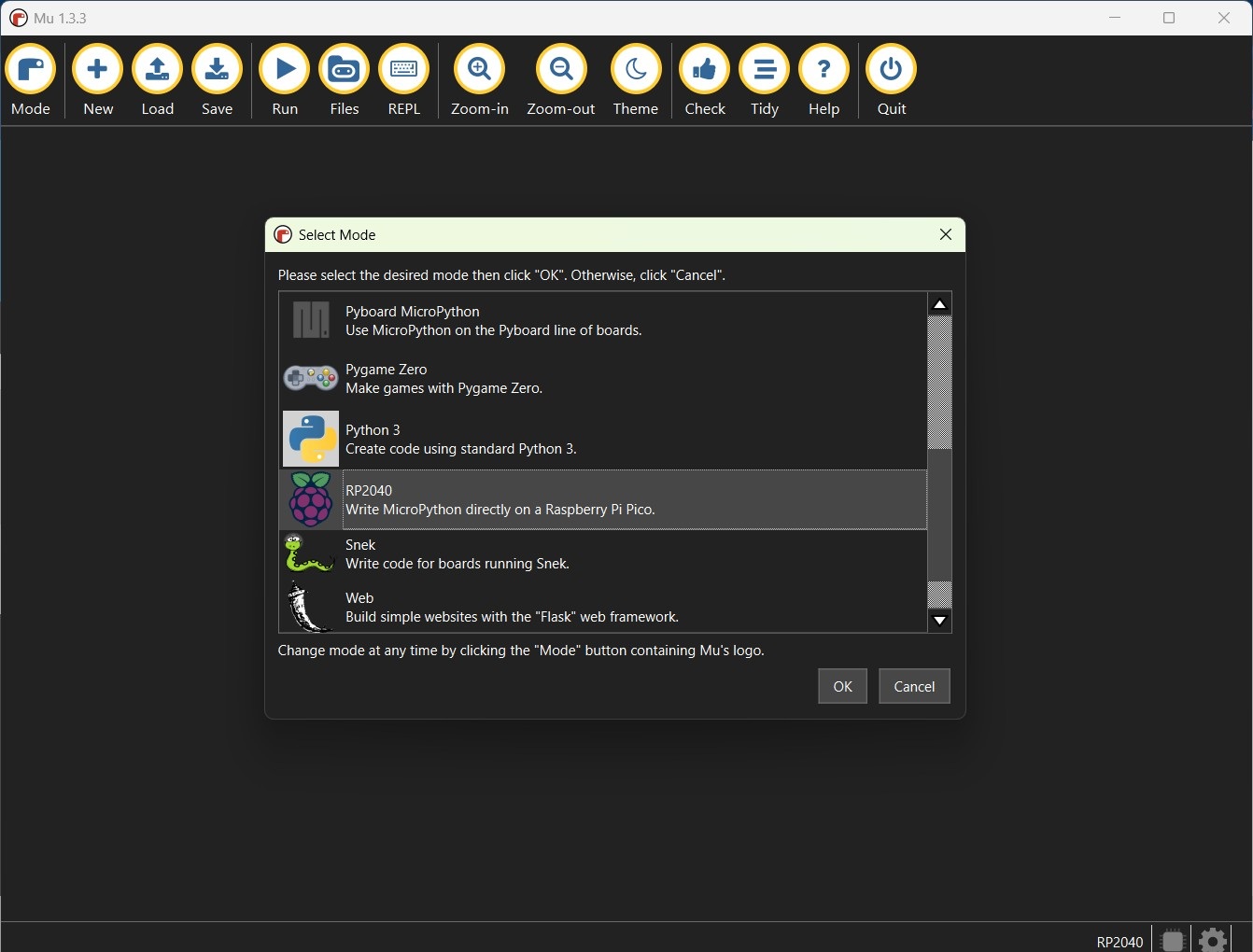
Open Mu and click on the Mode button in the top left. Select RPi Pico and click OK.
Install picozero from PyPI in Mu
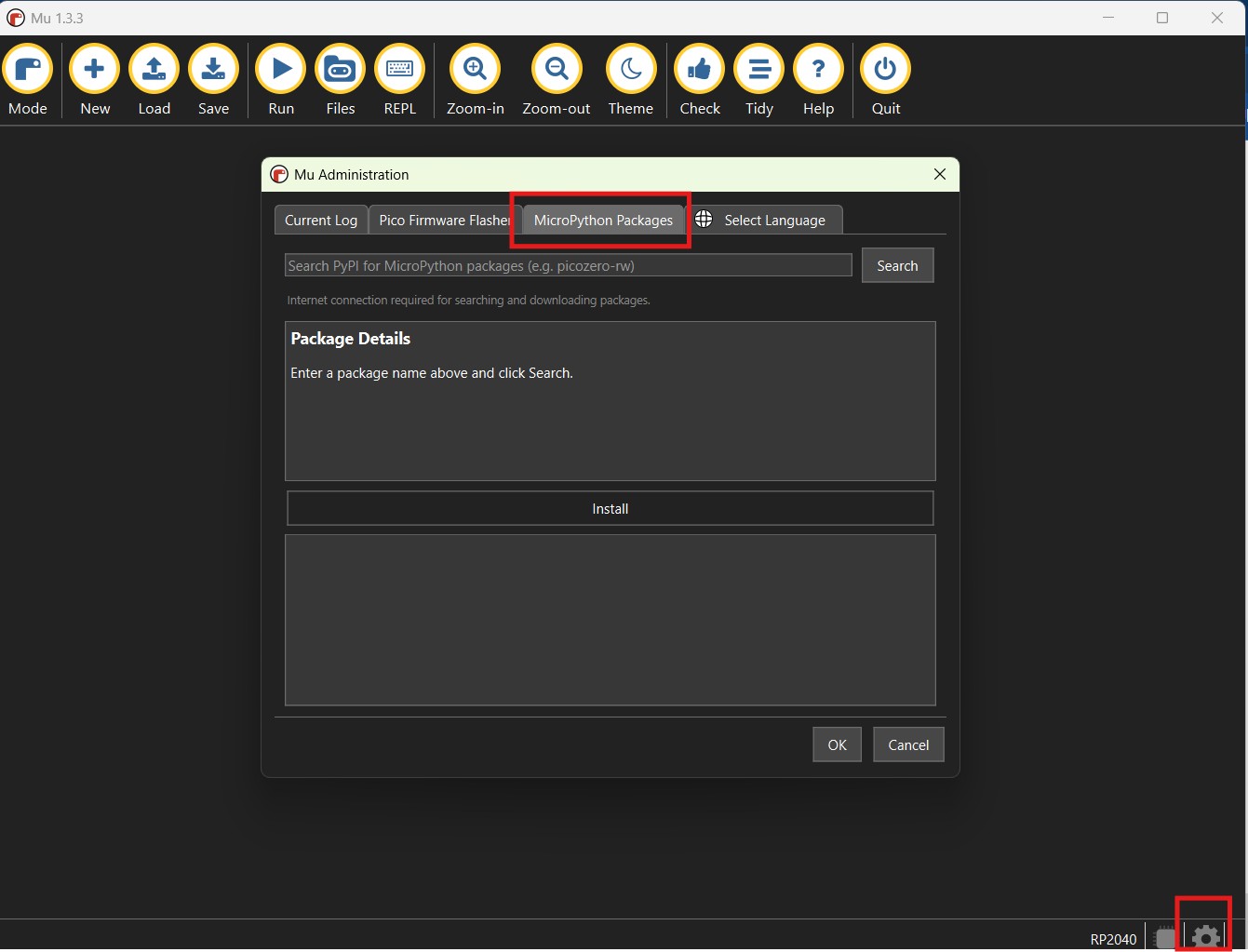
To install picozero-rw within Mu, click on the Packages button.
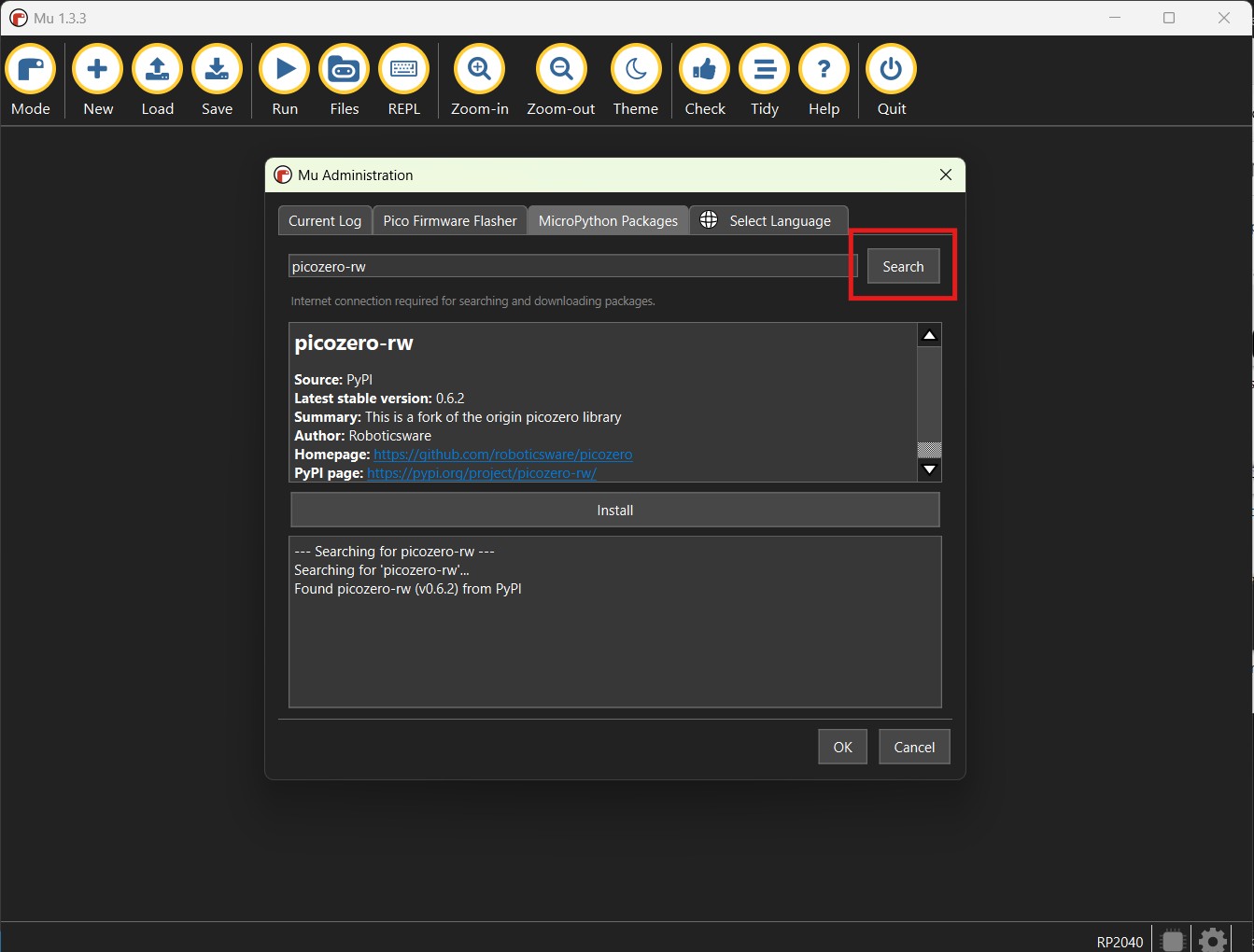
Search for picozero-rw and click Search.
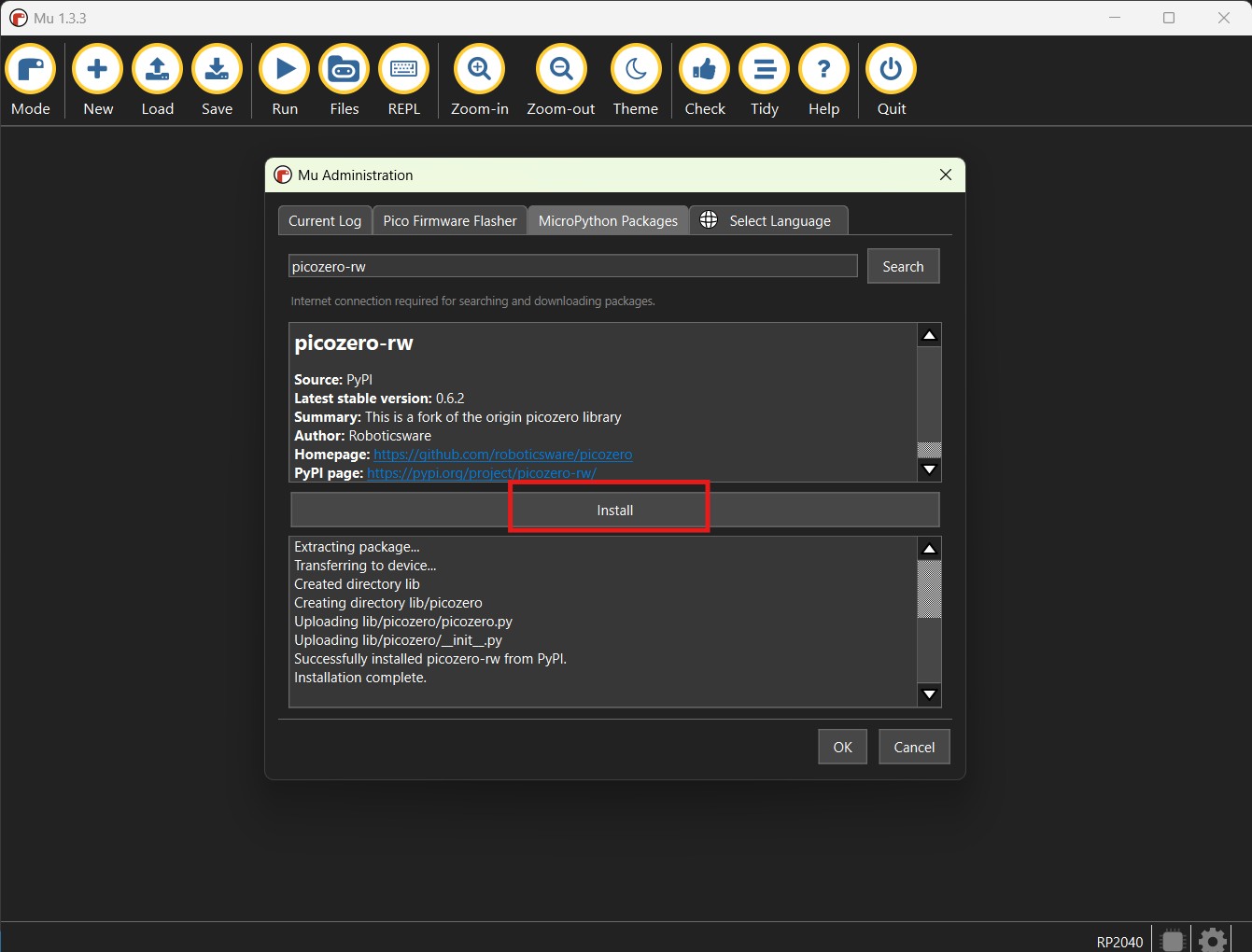
Click on Install to download and install the package to your device.
Manual install in Mu
picozero can be installed by copying the picozero.py code to your Raspberry Pi Pico using Mu’s file manager.
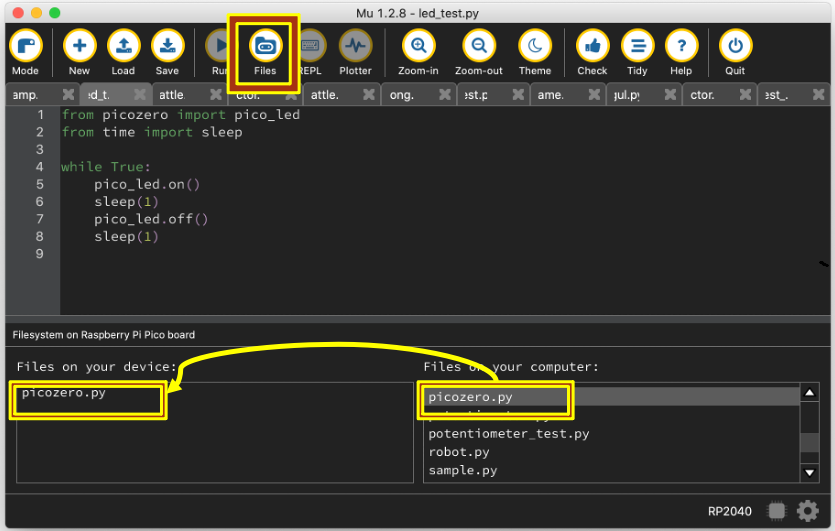
Click on the Files button to open the file manager.
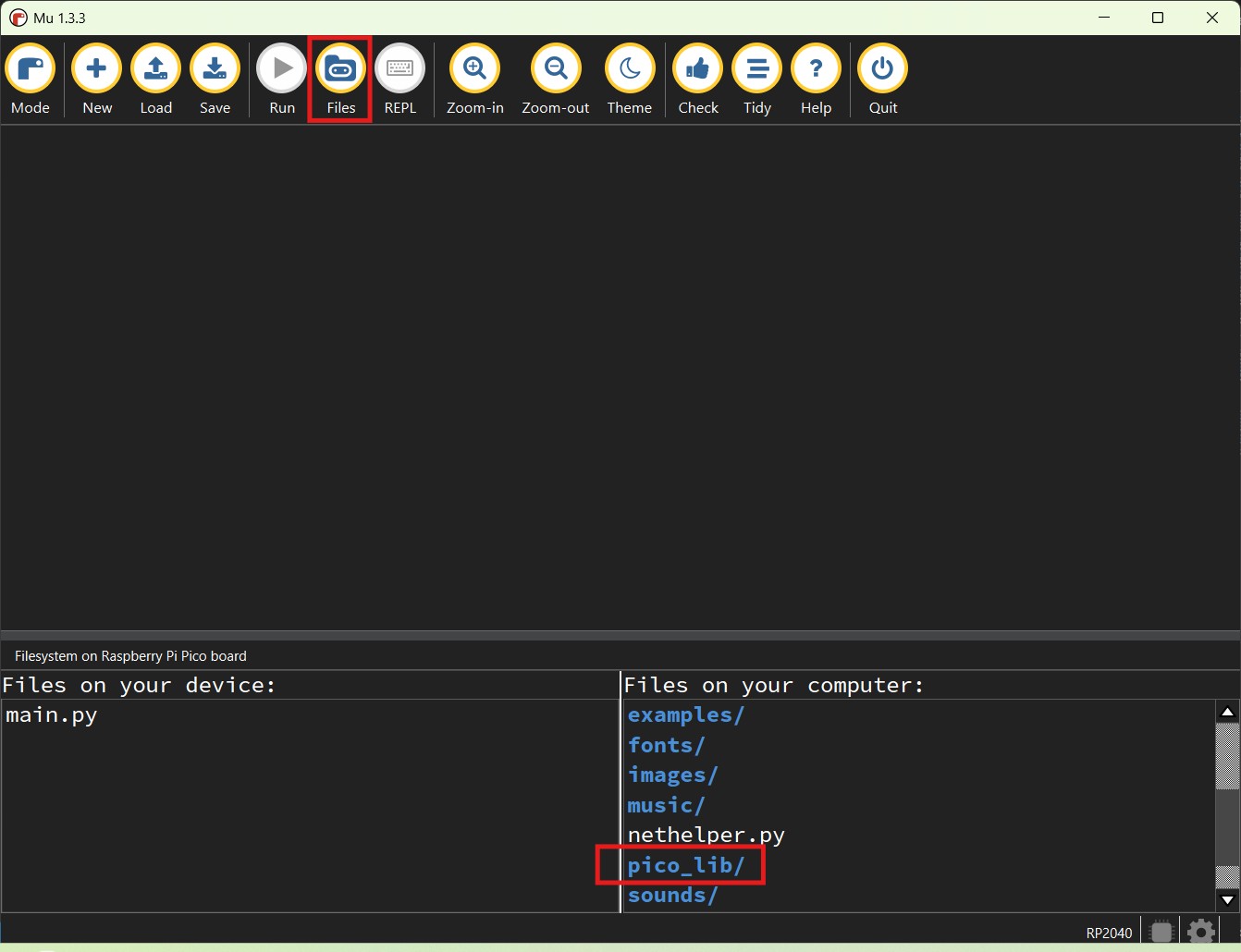
In Mu, find the picozero.py file inside the pico_lib folder in the Files on your computer pane. Drag and drop it to the Files on your device pane.
Install using Thonny
Requirements
A Windows, macOS, or Linux computer with the Thonny Python IDE installed.
You can find information on how to install Thonny in the Introduction to Raspberry Pi Pico guide.
Once Thonny is installed, you will need to ensure that you are using the latest MicroPython firmware. Details on how to install or update the Raspberry Pi Pico MicroPython firmware can be found in the Pico guide.
Select the MicroPython interpreter
You can change which interpreter you are using in Thonny by selecting the desired option at the bottom right of the screen. Make sure that MicroPython (Raspberry Pi Pico) is selected.

Install picozero from PyPI in Thonny
To install picozero within Thonny, select Tools > Manage packages…
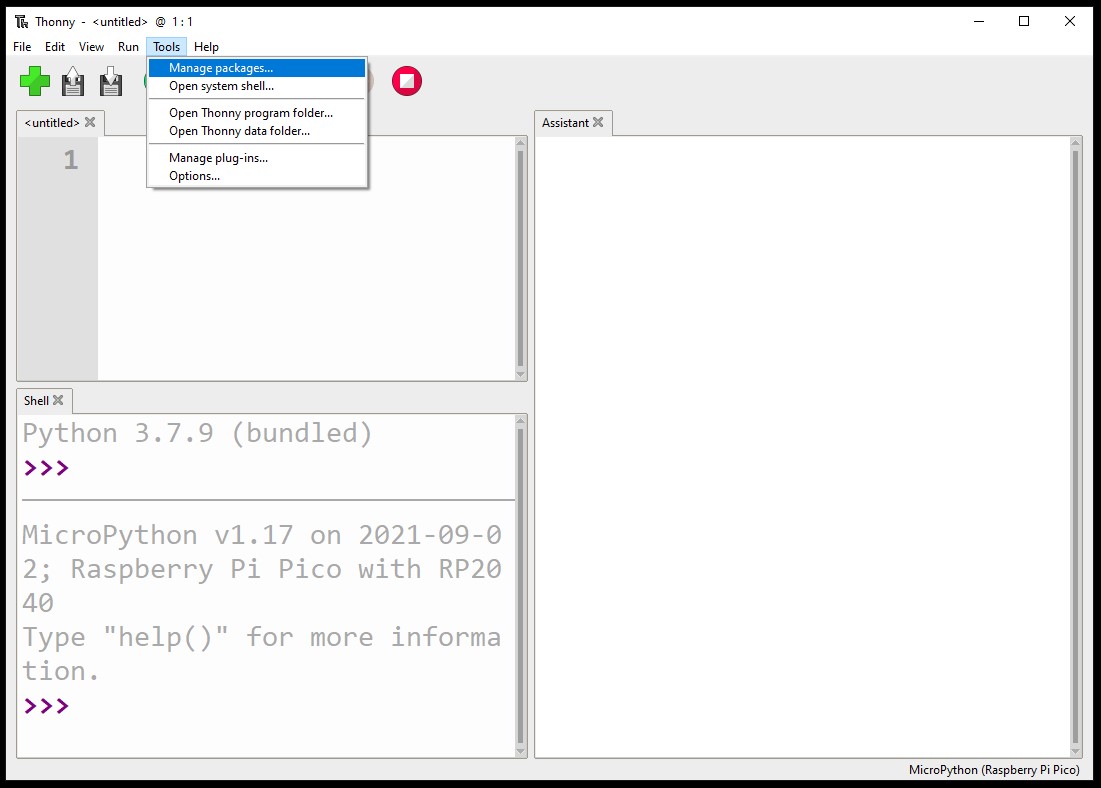
Search for picozero-rw on PyPI.

Click on install to download the package.

Manual install in Thonny
picozero can be installed by copying the picozero.py code to your Raspberry Pi Pico.
Either clone the picozero GitHub repository or copy the code from the picozero.py file and save it on your main computer.
Create a new file called picozero.py, copy code into the file and save it on your Raspberry Pi Pico.
Copy picozero.py using Thonny
Alternatively, you can use the Thonny file manager to transfer the picozero.py file to your Raspberry Pi Pico.
In the View menu, ensure that the Files option has a tick. This will let you see the files.
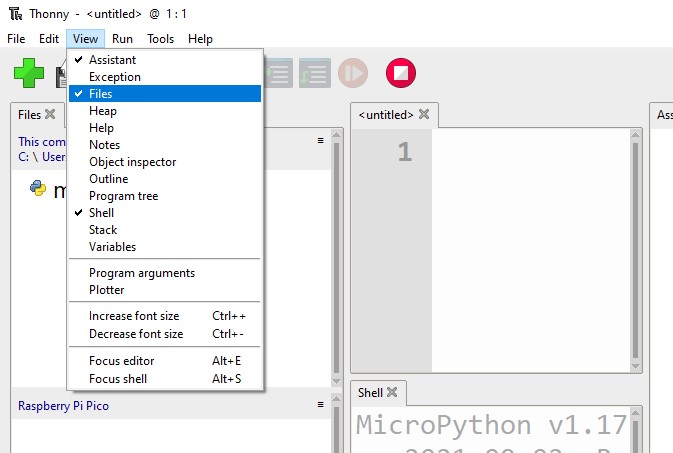
Either clone the picozero GitHub repository or download the picozero.py file and save it on your main computer.
In Thonny, navigate to the cloned directory or location you saved the file in and find the picozero.py file.
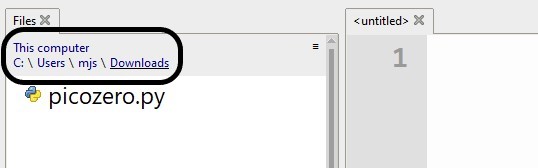
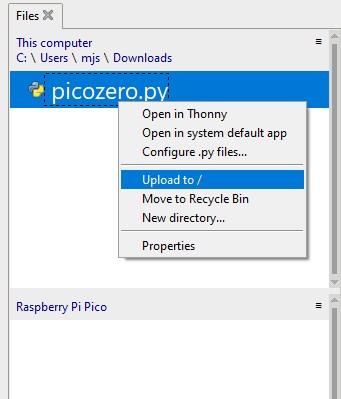
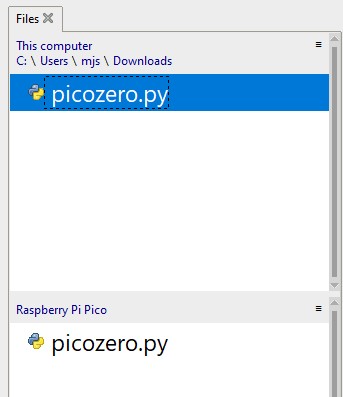
Right click on the file and select the Upload to / option. You should see a copy of the picozero.py file on the Raspberry Pi Pico.
Write a program to control the onboard LED
The following code will blink the onboard LED at a frequency of once per second.:
from picozero import pico_led
from time import sleep

while True:
    pico_led.on()
    sleep(0.5)
    pico_led.off()
    sleep(0.5)
Run the program on your computer
You can choose to run the program from your computer.
Click on the Run current script button.
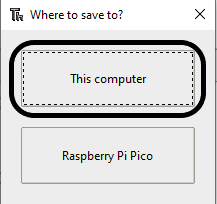
Choose to save the script on This computer and provide a filename.
Run the program on your Raspberry Pi Pico
You can choose to run the program from the Raspberry Pi Pico.
Click on the Run current script button.
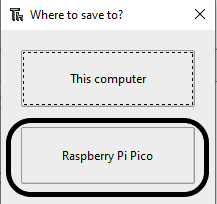
Choose to save the script on Raspberry Pi Pico and provide a filename.
If you call the file main.py, it will run automatically when the Pico is powered on.